
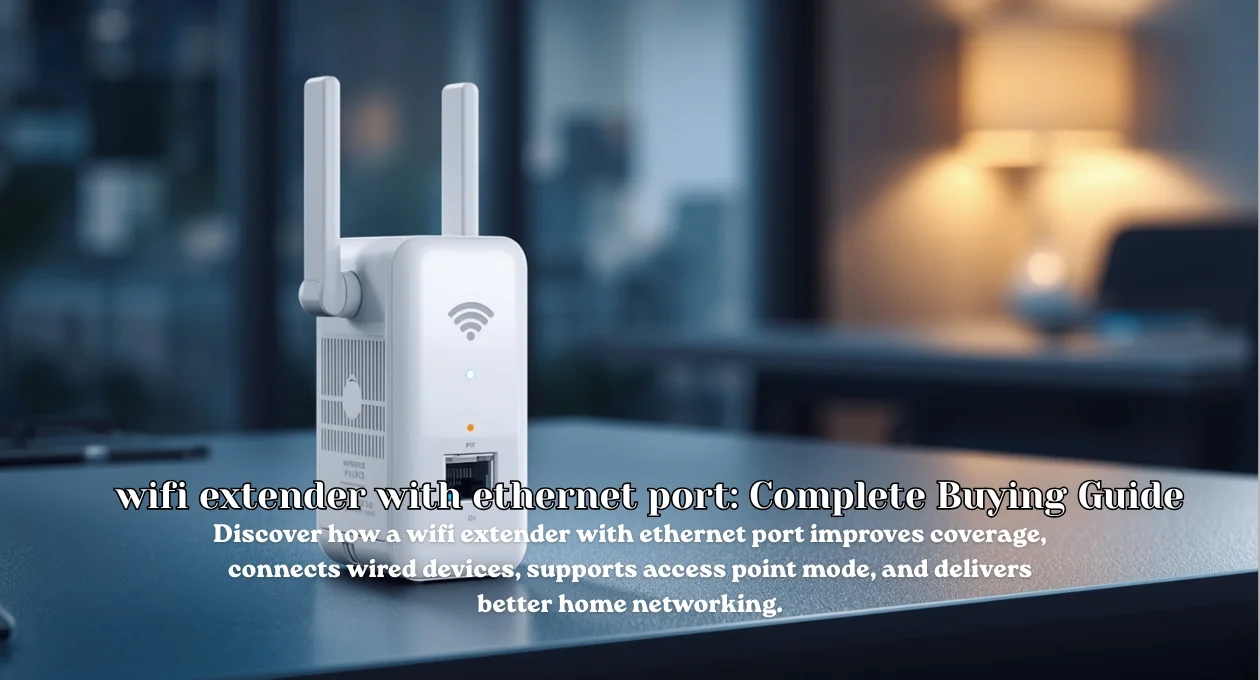
A weak wireless signal can turn a smart television into a buffering ornament and make video meetings feel like broken radio calls. A wifi extender with ethernet port tackles two frustrations at once: it pushes coverage toward neglected rooms and gives selected equipment a physical network connection. That combination suits consoles, printers, desktop computers, cameras, and televisions that either lack strong Wi-Fi hardware or perform better through a stable wired connection.
However, an Ethernet socket doesn’t guarantee identical behavior across every extender. Some models use the port mainly as a wireless bridge for one wired device, while others accept an incoming cable and operate as an access point. Port speed, radio design, placement, security, and router compatibility also shape results. This The Tek Zio guide explains those differences clearly, helping you choose and configure a wifi extender with ethernet port without buying misleading specifications or creating fresh network headaches.
| Feature to check | Why it matters | Practical target |
| Ethernet speed | Limits wired-device throughput | Gigabit Ethernet for most homes |
| Operating modes | Determines whether the port accepts or supplies network access | Extender plus access point mode |
| Wireless standard | Affects capacity, latency, and efficiency | Wi-Fi 6 for balanced value |
| Radio bands | Influences range and backhaul performance | Dual-band minimum; tri-band for demanding homes |
| Security | Protects connected devices and credentials | WPA3 or WPA2-AES |
| Mesh support | Improves roaming with compatible routers | EasyMesh, OneMesh, or brand-specific mesh |
What a wifi extender with ethernet port Actually Does
Think of an extender as a bilingual courier between your router and distant devices. In ordinary repeater mode, it receives an existing Wi-Fi signal, then rebroadcasts that connection into a weak area. The Ethernet socket can connect a television, desktop, game console, printer, or recorder to the extended network. NETGEAR describes extenders as devices that rebroadcast router coverage, while several models add a Gigabit Ethernet port for wired clients. NETGEAR’s extender overview confirms this basic role. (Netgear)
The important catch involves the upstream link. A cable-connected device may look wired, yet traffic can still travel wirelessly from the extender to the router. Therefore, Ethernet removes the final wireless hop but doesn’t automatically eliminate radio congestion. A wifi extender with ethernet port can improve reliability for equipment with poor antennas, though its total speed still depends on the wireless backhaul, signal quality, radio bands, and Ethernet specification. That distinction prevents unrealistic expectations.
Ethernet Bridge Mode Versus Access Point Mode
Bridge mode turns wireless service into a usable cable connection. The extender joins your router through Wi-Fi, then supplies network access through its port to a nearby wired device. This arrangement works beautifully for an older smart television, network printer, media receiver, or desktop without dependable wireless hardware. The port acts like a translator rather than a direct router cable. Some entry-level products use Fast Ethernet, which caps the wired link below modern Gigabit networking speeds.
Access point mode reverses the relationship. You run an Ethernet cable from the router, switch, or active wall jack into the extender, then the unit creates fresh wireless coverage. TP-Link states that only certain port-equipped extenders support this function, so shoppers must verify the exact model instead of assuming. A wifi extender with ethernet port in AP mode usually offers steadier performance because the wired uplink avoids a repeated wireless hop. TP-Link’s official setup guide explains the requirement. (TP-Link)
Why Ethernet Port Speed Matters More Than Marketing Numbers
Large numbers printed on packaging often represent combined theoretical wireless rates, not the speed one device will receive. An “AX3000” label, for example, may total maximum figures across multiple bands under ideal laboratory conditions. Meanwhile, a 100Mbps Ethernet socket can become an obvious choke point. When a wifi extender with ethernet port connects a gaming console, television, NAS, or workstation, choose Gigabit Ethernet unless the internet plan and device genuinely need less.
Modern premium extenders increasingly include faster ports. NETGEAR’s current Wi-Fi 7 EXS27, for instance, lists a 2.5GbE port, while mainstream Wi-Fi 6 models commonly provide one Gigabit socket. Faster hardware won’t repair weak placement or crowded channels, but it prevents the port itself from strangling local transfers. NETGEAR’s EXS27 specifications illustrate this progression. (Netgear) Match the port to your internet speed, local file-transfer needs, connected hardware, and expected ownership period.
Wi-Fi 5, Wi-Fi 6, and Wi-Fi 7 Explained Simply
Wi-Fi 5 extenders can still handle browsing, HD streaming, and ordinary smart-home traffic at sensible prices. Yet busy households benefit from Wi-Fi 6, which manages multiple active devices more efficiently and generally provides stronger capacity. A wifi extender with ethernet port using dual-band Wi-Fi 6 offers a practical middle ground for apartments, offices, and medium-sized homes. It also pairs sensibly with current phones, laptops, televisions, and routers without demanding premium pricing.

Wi-Fi 7 targets heavier networks, multi-gigabit plans, low-latency applications, and buyers planning several years ahead. However, real benefits require compatible clients, an appropriate router, capable cabling, and clean radio conditions. Don’t pay for exotic throughput when the extender connects through a weak 2.4GHz signal. Instead, prioritize backhaul quality, Gigabit or multi-gig Ethernet, firmware support, and usable placement. Standards matter, but the slowest link still governs the journey—much like one tractor controlling an entire country road.
Best Uses for Wired Devices, Gaming, and Streaming
A wifi extender with ethernet port shines when a stationary device sits beyond practical cable reach. Connect a smart television, streaming box, console, desktop, solar controller, surveillance recorder, or office printer through Ethernet. The device gains a consistent local link and avoids its own mediocre Wi-Fi adapter. This setup can reduce random disconnections, simplify configuration, and improve responsiveness, especially when the extender receives a strong 5GHz connection from the main router.
Gaming needs a more cautious verdict. Ethernet between the console and extender can stabilize the final hop, but wireless backhaul still introduces variable latency and interference. Competitive players should prefer direct Ethernet, MoCA, or a mesh system with wired backhaul whenever possible. For casual gaming and streaming, a well-positioned wifi extender with ethernet port may work perfectly well. Test latency, packet loss, and evening congestion rather than trusting signal bars alone; full bars can still conceal a crowded channel.
Correct Placement for Stronger Coverage and Better Speed
Placement decides whether an extender becomes a bridge or an expensive night-light. Don’t install it inside the dead zone because it cannot amplify a signal it barely receives. TP-Link recommends positioning an extender roughly halfway between the router and weak area while keeping it within reliable router range. Signal LEDs can help identify a workable location. TP-Link’s placement guidance emphasizes a strong upstream connection before extended coverage reaches distant devices. (TP-Link)
Keep the unit elevated, open, and away from metal cabinets, microwave ovens, thick concrete, large mirrors, and crowded electrical equipment. A wifi extender with ethernet port also needs practical cable access, so balance radio quality with device location. Try several outlets, then measure speed and latency at each spot. Sometimes moving the extender one room closer to the router produces better service farther away. Radio waves aren’t obedient plumbing; walls, angles, materials, and neighboring networks reshape them constantly.
How to Set Up a wifi extender with ethernet port
Start near the router, update the router if necessary, and record the current network name and password. Use the manufacturer’s app, browser interface, or WPS process to pair the extender. After configuration, move it to the chosen midpoint and confirm that its signal indicator shows a healthy upstream link. NETGEAR’s current setup guidance follows this broad sequence. The official NETGEAR setup guide also recommends testing coverage, speed, and stability after relocation. (Netgear)
Next, connect the wired device with a suitable Cat5e or Cat6 cable, then verify that it receives an IP address and internet access. For access point mode, attach the Ethernet uplink first and select the correct operating mode in the dashboard. Linksys similarly requires a router-to-extender cable before changing supported models into wired range extender mode. Linksys setup instructions show the process. (Linksys) Rename networks thoughtfully, test both bands, and document administrator credentials.
Security, Firmware, and Network Management
Convenience shouldn’t create a soft doorway into your home network. Choose WPA3-Personal when every essential device supports it, or use WPA2-AES for broader compatibility. Avoid obsolete WEP and weak legacy settings. CISA recommends WPA3 Personal or WPA2 AES while also advising regular firmware updates. CISA’s home Wi-Fi guidance supports these safeguards. (CISA) A wifi extender with ethernet port deserves the same security attention, password hygiene, and maintenance as the primary router.
Change default administrator credentials, install firmware updates, disable remote management unless needed, and review connected-device lists periodically. Use a separate guest or IoT network when compatible equipment allows it. WPS offers quick pairing, but disabling it afterward can reduce unnecessary exposure. Also confirm that the extender still receives security updates before purchasing an old clearance model. Network encryption, strong passwords, and supported firmware matter more than ornamental antennas or improbable range claims printed across a glossy box.
How to Choose the Right Model for Your Home
Begin with the problem, not the product shelf. One weak bedroom may need a modest dual-band unit, while a multi-floor house with concrete walls may justify mesh equipment or wired access points. For balanced value, seek Wi-Fi 6, Gigabit Ethernet, clear signal indicators, app-based management, and access point support. A wifi extender with ethernet port should also match your router’s bands and security modes. Universal compatibility helps, though same-brand mesh features may improve roaming.

Check whether the advertised Ethernet port supports input in access point mode, output for wired clients, or both. Then examine port speed, antenna design, outlet clearance, warranty, firmware history, and regional voltage. TP-Link’s current range includes models with Gigabit ports, AP mode, and EasyMesh compatibility, demonstrating how widely features differ. TP-Link’s extender catalog provides useful comparisons. (TP-Link) Don’t confuse maximum laboratory throughput with guaranteed room-to-room speed during ordinary household use today.
wifi extender with ethernet port FAQs
1. Can the Ethernet port connect directly to a router?
Yes, but only when the model supports access point or wired-extender mode.
2. Does Ethernet make the extender as fast as the router?
Not necessarily; wireless backhaul, interference, port speed, and router capacity still matter.
3. Can it connect a smart TV or console?
Yes. A wifi extender with ethernet port can bridge compatible wired equipment onto the existing network without adding a separate Wi-Fi adapter.
4. Is an extender better than mesh Wi-Fi?
It’s cheaper and suitable for one or two problem areas, while mesh usually handles larger homes and roaming more gracefully.
5. Will it reduce speed?
Wireless repeating can reduce usable capacity because traffic crosses additional radio links, although dual-band, tri-band, and wired-backhaul designs lessen the penalty. For many households, the right wifi extender with ethernet port remains a tidy, economical fix—provided placement, mode selection, and expectations stay realistic.
For More Information Keep Visiting TheTekZio.


