
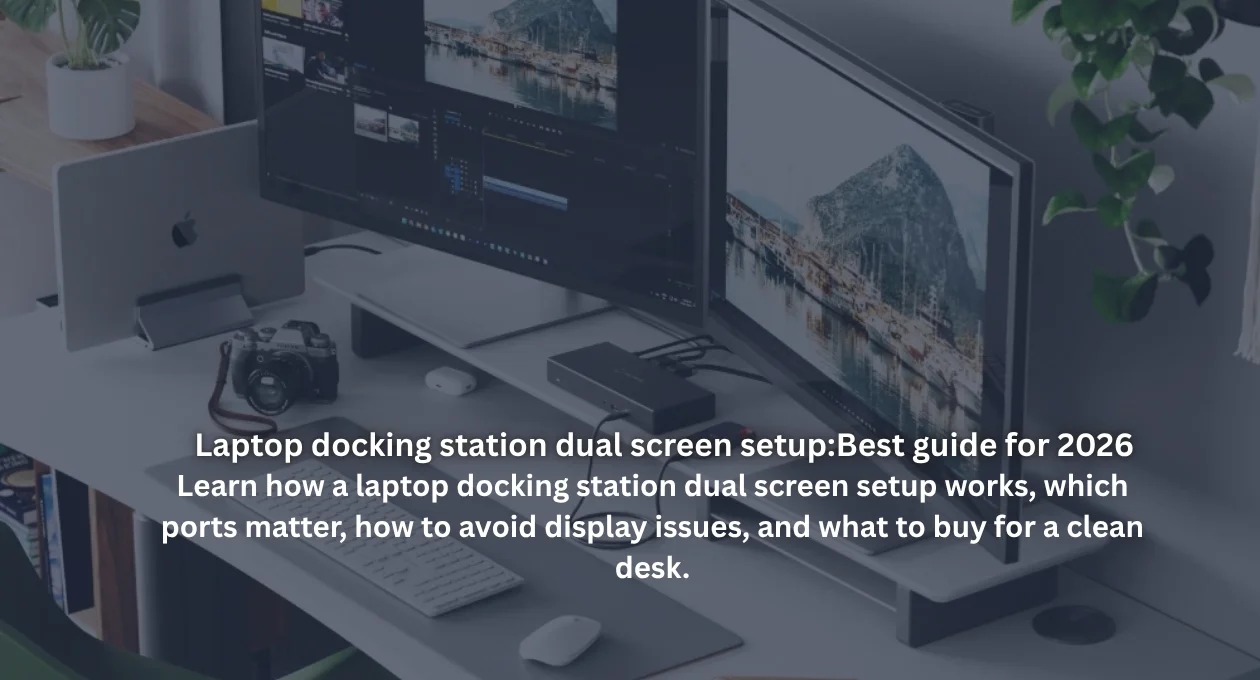
A laptop docking station dual screen setup turns a small laptop into a proper desk workstation without cable chaos. Instead of plugging in monitors, keyboard, mouse, charger, Ethernet, and storage every morning, you connect one main cable. Suddenly, your laptop behaves like a desktop. For writers, coders, designers, traders, students, and remote workers, dual monitors create breathing room that a single laptop panel can’t offer.
However, not every dock can run two separate screens. Some cheap hubs only mirror the same image across both monitors, which ruins multitasking. Microsoft warns that many splitters duplicate one signal instead of creating two independent displays, so the dock must support extended displays properly. A strong laptop docking station dual screen setup depends on your laptop port, dock chipset, monitor resolution, and operating system support. (Microsoft Support)
Why dual screens make laptop work feel faster
Productivity jumps when your eyes stop playing hide-and-seek with windows. A laptop docking station dual screen arrangement lets you keep research on one display and your main work on another. For example, a video editor can place the timeline on one monitor and preview footage on the second. A blogger on The Tek Zio can compare specs, write drafts, and monitor analytics without constant tab juggling.
Moreover, dual screens reduce mental clutter because your workspace gains visual structure. Microsoft’s Surface productivity guide highlights how a dual-monitor environment can support studying, research, and collaboration by organizing tasks across screens. That same idea applies to business dashboards, coding projects, SEO audits, and customer support queues. With the right USB-C dock, your laptop becomes a calm command center instead of a cramped digital shoebox. (Microsoft)
Check your laptop ports before buying a dock
Smart buying starts with the tiny symbol beside your laptop port. A laptop docking station dual screen setup usually needs USB-C Alt Mode, Thunderbolt, USB4, or a DisplayLink-based dock. A plain USB-C port may charge your laptop and transfer files, yet it may not send video. That’s where many buyers stumble. Same shape, different powers. Annoying? Absolutely. Important? Very.
Furthermore, DisplayPort Alt Mode allows a USB-C port to carry video from the laptop’s graphics system to an external display. Plugable explains that USB-C Alt Mode gives a direct connection to the GPU and avoids extra display software in supported setups. Before buying a Thunderbolt dock or USB-C dock, check your laptop’s official specifications for video output, charging wattage, and supported monitor count. (kb.plugable.com)
USB-C, Thunderbolt, and DisplayLink aren’t the same
Confusion often starts because every modern port looks nearly identical. A laptop docking station dual screen product may use USB-C, Thunderbolt 3, Thunderbolt 4, USB4, or DisplayLink technology. Thunderbolt docks usually offer stronger bandwidth, better multi-monitor support, faster data transfer, and cleaner compatibility with premium laptops. USB-C docks can work beautifully too, yet only when the laptop supports the right video mode.

Meanwhile, DisplayLink works differently because it uses software and a display decoder to add screens through USB. Synaptics describes DisplayLink as a GPU-agnostic display solution that can add extra displays through USB graphics adapters and docking products. This helps laptops with limited native video support. Still, a laptop docking station dual screen setup using DisplayLink may need drivers, especially on macOS. (Synaptics)
Windows laptops usually offer easier dual-screen docking
Windows users often get the smoothest path because many business laptops support MST, DisplayPort Alt Mode, Thunderbolt, or USB4. A laptop docking station dual screen setup on Windows can usually extend displays through Settings > System > Display. Microsoft’s official Windows guide explains how users can identify displays, arrange screens, and adjust multiple-display preferences from the Display settings menu. (Microsoft Support)
However, Windows compatibility still depends on hardware. A budget laptop with one basic USB-C data port may not support video at all. In that case, a DisplayLink dock can rescue the setup. For best results, choose a dock that clearly mentions dual monitors, supported resolutions, refresh rates, and charging power. A good laptop docking station dual screen setup should feel boring in the best way: plug in, wake up, work.
MacBook dual-screen setups need extra attention
Mac users need to read the fine print before buying. A laptop docking station dual screen setup can work beautifully on many MacBook Pro models, yet some Apple Silicon MacBooks have native external-display limits. Apple advises users to check each Mac’s technical specifications to confirm how many external displays the model supports. This step matters more than the dock’s marketing headline. (Apple Support)
Interestingly, Apple says MacBook Air and MacBook Pro models with the M3 chip can connect two external displays simultaneously when the lid stays closed and requirements are met. That’s useful for clamshell desk setups. Still, older base M1 and M2 MacBook Air models usually need DisplayLink for dual extended screens. Therefore, a MacBook dual display buyer should match the dock to the exact chip, macOS version, and monitor plan. (Apple Support)
Choose the right ports for your monitors
Monitor ports matter because adapters can create messy little gremlins. A laptop docking station dual screen setup works best when your dock and monitors share native connections like HDMI or DisplayPort. HDMI is common on TVs and office monitors. DisplayPort often suits higher refresh rates, daisy chaining, and professional displays. If your dock has two HDMI ports and your monitors accept HDMI, life becomes simpler.
Still, resolution and refresh rate deserve equal attention. Dual 1080p monitors need less bandwidth than dual 4K 60Hz displays. Many Thunderbolt 4 docks advertise dual 4K support, while cheaper USB-C hubs may limit one screen or reduce refresh rates. Plugable’s Thunderbolt 4 dock listing, for example, highlights dual 4K 60Hz HDMI, 40Gbps Thunderbolt 4 speed, and high-wattage Power Delivery for demanding desk setups. (Plugable Technologies)
Don’t forget charging, Ethernet, and desk comfort
A great dock should do more than push pixels. A laptop docking station dual screen setup should also charge your laptop, connect your keyboard, power your mouse receiver, handle external drives, and add stable Ethernet. Look for Power Delivery that matches your laptop’s charger. A 65W dock may work for ultrabooks, while larger creator or workstation laptops may need 90W, 100W, or more.
Additionally, desk comfort changes everything. Place both monitors at eye level, keep the main screen directly in front of you, and angle the second display slightly inward. Use matching resolutions where possible because mixed scaling can feel awkward. A clean laptop workstation should reduce friction. When one cable connects your laptop to power, screens, storage, audio, and network, your desk finally stops looking like spaghetti night.
Common dual-screen docking problems and fixes
Blank screens usually come from simple mismatches. A laptop docking station dual screen setup may fail if the laptop port lacks video output, the dock needs drivers, the cable supports charging only, or the monitor input is wrong. First, test one monitor directly with the laptop. Then update graphics drivers, dock firmware, DisplayLink software, and operating system patches. Boring steps often fix dramatic problems.
Another common issue appears when both monitors show the same content. That usually means mirroring, a basic splitter, or incorrect display settings. In Windows, choose Extend these displays rather than Duplicate. On macOS, open Displays and arrange screens manually. Also avoid bargain adapters with vague claims. For a reliable laptop docking station dual screen setup, buy from brands that clearly list compatibility, resolution limits, and driver requirements.
Best buying checklist for The Tek Zio readers
Before buying, use this simple checklist: confirm your laptop supports USB-C Alt Mode, Thunderbolt, USB4, or DisplayLink; check whether your laptop can run two external monitors; match dock outputs to monitor inputs; verify charging wattage; then confirm dual-screen resolution. A laptop docking station dual screen setup should mention extended displays, not just “two HDMI ports.” That small phrase can save a large headache.

For most Windows users, a Thunderbolt 4 or USB4 dock offers the cleanest long-term choice. For MacBook users with native limits, DisplayLink docks can solve dual-display problems with the right driver. For budget buyers, a USB-C dock works well when specs align. The Tek Zio’s final advice is simple: the best laptop docking station dual screen setup isn’t the fanciest dock. It’s the one your laptop fully supports.
FAQs about laptop docking station dual screen setups
Can any dock run two monitors?
No, some docks only mirror screens.
Do I need Thunderbolt?
Not always, because USB-C Alt Mode or DisplayLink may work.
Can MacBook Air use two monitors?
Some models can under specific rules, while others need DisplayLink.
Is HDMI better than DisplayPort?
Both work, yet DisplayPort often handles advanced monitor setups better.
Why does only one monitor work?
Your laptop may not support dual native video, the cable may lack video capability, or the dock may need drivers.
Can one USB-C cable run everything?
Yes, if the dock supports video, data, and Power Delivery. A strong laptop docking station dual screen setup can run monitors, charging, keyboard, mouse, Ethernet, and storage through one neat connection.


