
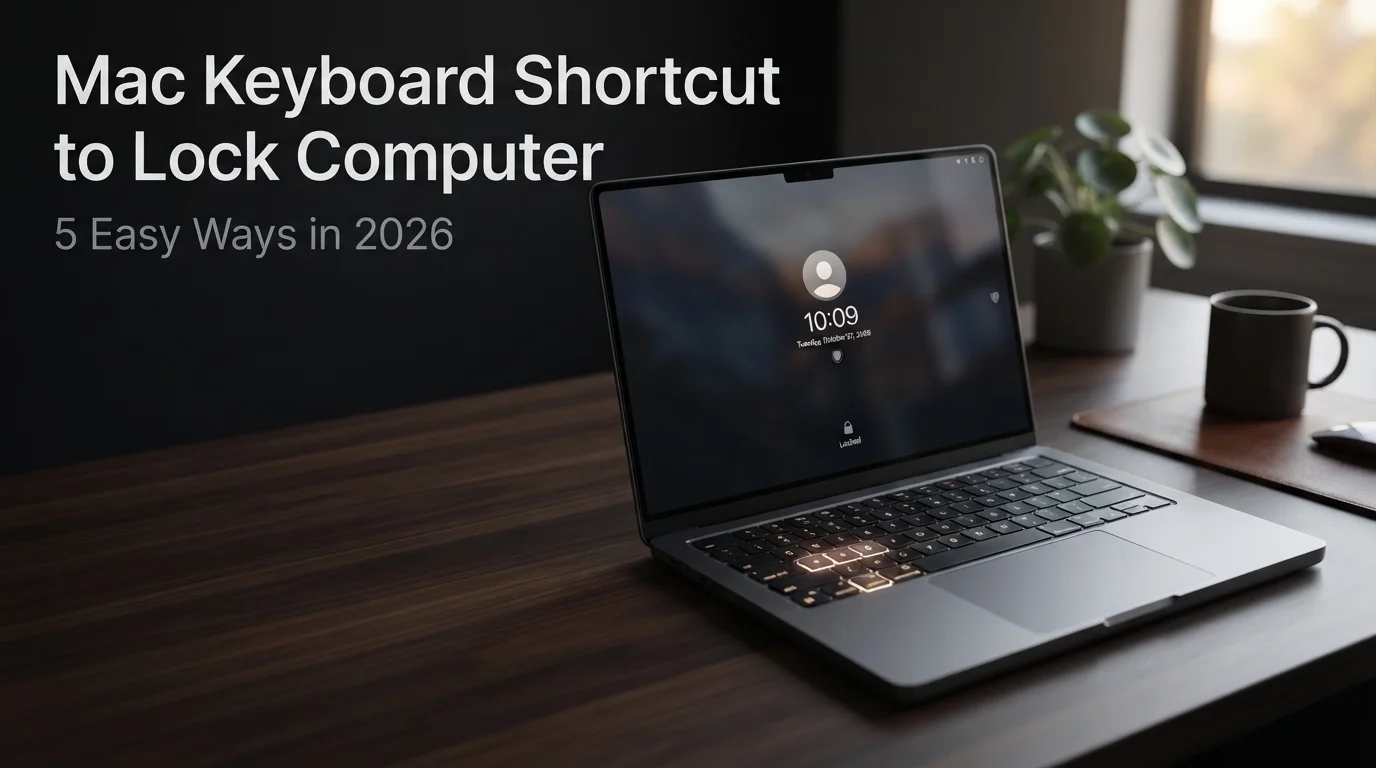
The Mac screen lock shortcut is Control + Command + Q. Press the three keys together and macOS immediately locks the screen while keeping your apps, files, and open work in place. Press the three keys together and macOS immediately locks the screen while keeping your apps, files, and open work in place. This makes it one of the fastest ways to protect your Mac when you step away. Apple officially lists Control–Command–Q as the shortcut for locking the screen.
| Quick Detail | Best Answer |
| Main shortcut | Control + Command + Q |
| Symbol version | ⌃ + ⌘ + Q |
| Best use | Locking your Mac before stepping away |
| Does it close apps? | No, your apps stay open |
| Best setting | Require password immediately |
What Is the mac keyboard shortcut to lock computer?
The mac keyboard shortcut to lock computer is Control + Command + Q, often shown as ⌃ + ⌘ + Q. Press all three keys together and your Mac moves instantly to the lock screen. Your apps stay open, your files remain in place, and your active session waits behind your password, Touch ID, or Apple Watch unlock. It’s quick, clean, and wonderfully boring in the best Mac security sense. No extra app setup is needed.
Think of a lock Mac with keyboard shortcut like pulling a privacy curtain across your digital desk. It doesn’t shut down your Mac, quit apps, or erase anything from your workspace. Instead, it blocks access until you authenticate again. That makes it useful in offices, classrooms, cafés, libraries, shared homes, airports, and coworking spaces where one curious glance can reveal more than you intended. Simple tools often save the day.
Why Locking Your Mac Matters Every Day
A locked Mac protects more than fancy spreadsheets and half-written documents. It guards private messages, saved passwords, client portals, browser sessions, banking tabs, cloud folders, and workplace dashboards. When you use the Mac lock screen shortcut, you reduce the chance of someone reading, copying, deleting, or sending something while you’re away for a snack, a phone call, a printer run, or a quick hallway chat. That supports everyday privacy protection.
Small habits often carry heavy security weight. You don’t need to run a cybersecurity lab to care about data privacy. Maybe you share a dorm room, sit beside strangers, or leave your MacBook open while grabbing coffee. However normal the scene looks, an unlocked screen can become a glass window. Locking takes one second. Cleaning up a privacy mistake can steal your whole afternoon and leave a nasty digital paper trail.
How to Use Control + Command + Q Correctly
Here’s the muscle-memory version: place one finger on Control, another on Command, then tap Q. Release the keys when the lock screen appears. The Control Command Q shortcut works best when you press Control first because Command + Q alone can quit the active app. That small detail matters when you’re writing, browsing, editing video, managing files, or handling a fragile work session. Practice it twice today. It becomes automatic.
For example, imagine you’re editing a proposal and someone calls you across the room. Instead of hunting through menus, press Control + Command + Q and walk away with confidence. Your workflow stays paused like a bookmarked page. When you return, unlock your Mac and continue without reopening windows, rebuilding tabs, recovering text, or wondering whether someone touched your keyboard while you were gone. That calm feeling is the real win.
Other Official Ways to Lock a Mac
Apple also provides several ways to lock a Mac without using Control + Command + Q. You can choose Apple menu > Lock Screen, use Touch ID or the power button on supported keyboards, or configure a Hot Corner to lock the screen. These options are useful when you prefer a mouse, trackpad, or hardware button instead of a keyboard shortcut.
Still, the MacBook lock shortcut usually wins for speed. Menus require pointer movement, Touch ID depends on hardware, and hot corners can trigger accidentally if your cursor flies too enthusiastically. Keyboard locking feels deliberate. It’s like clicking a seatbelt before driving away: quick, familiar, and reassuring once your fingers learn the route. No drama. No treasure hunt through settings. Just a clean lock, right when you need it.
Lock Screen vs Sleep vs Log Out
Many Mac users mix up lock screen, sleep, and log out because each one hides your work differently. Locking keeps apps running behind authentication. Sleep saves power and pauses activity more deeply. Logging out closes your user session after confirmation. The mac keyboard shortcut to lock computer chooses the least disruptive path because it protects access without scattering open files, browser tabs, creative projects, messages, and unfinished notes. No fuss.

That difference helps during busy days. If you’re rendering video, downloading files, uploading backups, or keeping research open, logging out may interrupt your flow. Sleep might pause some network behavior depending on settings. However, locking simply places a guarded door in front of your active account. It’s the “be right back” option, not the “pack everything away and start over” option. For most breaks, that’s exactly what you want.
How to Make Your Mac Ask for a Password
A shortcut only helps when your Mac actually requires authentication. Open System Settings > Lock Screen, then check “Require password after screen saver begins or display is turned off.” Apple’s password-after-wake guide explains this setting and recommends using it to keep information secure when you’re away. Without this step, locking can feel like a door with a sleepy latch. Set it once, then forget it.
For stronger protection, choose Immediately. That way your Mac asks for a password as soon as the screen saver starts or the display turns off. Pair that setting with the mac keyboard shortcut to lock computer and you get a neat one-two punch. First, you lock the screen manually. Next, macOS enforces authentication before anyone can peek behind the curtain. It’s quick protection without turning your workflow into a maze.
Can You Customize Keyboard Shortcuts on Mac?
macOS allows you to customize some keyboard shortcuts through System Settings > Keyboard > Keyboard Shortcuts. However, not every system shortcut can necessarily be changed in the same way. If a shortcut conflicts with another command, macOS can show a warning and allow the conflicting shortcut to be changed. Apple recommends checking the relevant Keyboard Shortcuts settings when a combination does not work as expected.
For most users, Control + Command + Q is the simplest option because Apple officially documents it as the Mac screen-lock shortcut. If you change it to something like Command + L, remember that browsers use that shortcut for the address bar. One shortcut can’t wear two hats comfortably. Choose a combination that doesn’t collide with Safari, Chrome, Finder, Spotlight, screenshots, password managers, text editors, meeting apps, or automation utilities. If you use keyboard shortcuts for screenshots too, see our guide on how to take a snapshot of your computer screen.
Best Security Habits for Shared Spaces
Shared spaces demand sharper habits. Use the lock screen on Mac shortcut before stepping away, even when you trust the people nearby. Trust doesn’t stop accidents. A child can press keys, a coworker can glance at a private message, and a stranger can photograph a screen faster than you can say “low battery.” Your Mac may look harmless, but it often holds your digital house keys. That sounds dramatic, until it happens.
Combine locking with FileVault encryption, a strong login password, updated macOS software, and automatic screen locking. These simple Mac security habits help protect your account even when you only step away for a few minutes. Screen locking protects access to an active session, but it is only one layer of Mac security. Avoid writing passwords on sticky notes beside your Mac, even if the note looks wonderfully innocent. Also, hide sensitive notifications from the lock screen if they reveal client names, one-time codes, or private chats. Privacy works best in layers, especially when basic device security is combined with broader protection against malware, scams, and other online threats. One layer blocks casual snooping, while the next handles nastier surprises that need stronger walls.
Troubleshooting and Common Mistakes
The biggest mistake is pressing Command + Q instead of Control + Command + Q. That can quit your active app rather than locking your Mac. Another mistake is assuming closing a MacBook lid always equals perfect security. It helps, but password and lock settings still matter. The Mac keyboard lock shortcut gives you a clearer, intentional action, intentional action that works before your hand even reaches the lid. Use it before you stand up.

If the shortcut doesn’t work, check whether an app has captured the key combination. Try it from Finder or the desktop. If the shortcut does not work, first try it from the desktop or Finder. Then check System Settings > Keyboard > Keyboard Shortcuts for conflicting shortcuts or keyboard-layout issues. External keyboards can add another wrinkle because the Command key may map to a Windows key. Test slowly, check modifier settings, and review keyboard shortcuts inside System Settings before blaming the keyboard. Sometimes the fix is embarrassingly simple, which is the best kind of fix.
FAQs About mac keyboard shortcut to lock computer
What is the Mac keyboard shortcut to lock the computer?
Press Control + Command + Q. Apple lists this shortcut as the command to lock the Mac screen. Apple Support
Does Control + Command + Q close my apps?
No. It locks the screen while your apps and open work remain available after you unlock the Mac.
Is locking a Mac the same as putting it to sleep?
No. Locking protects access to your current session, while sleep puts the Mac into a lower-power state.
Can I lock my Mac without a keyboard shortcut?
Yes. You can use Apple menu > Lock Screen, supported Touch ID/power controls, or other configured options such as Hot Corners. Apple Support
How do I make my Mac require a password after locking or waking?
Open System Settings > Lock Screen and configure Require password after screen saver begins or display is turned off. Apple Support
Can I customize Mac keyboard shortcuts?
macOS allows some keyboard shortcuts to be customized through System Settings > Keyboard > Keyboard Shortcuts, although available options vary by shortcut and system function. Apple Support
For more amazing blogs keep visiting The Tek Zio


